Medical
Application
Tracking
Under
Zenia Mobile
Client
Un disclosed
About Project
The project was to redesign "e-spandan" an application tracking system for Biotroniks a Pacemaker Brand in India.
Considering the risk of loosing lives due to any minor mistake like not missing an appointment or failing to register follow up request, every minute detail and edge has to be thought of creating multiple complicated flow.
This particular case study is about how I redesigned "Reports" section.
My Input
Designing new flows and screens that didn't disrupt previous supply chains but supported and strengthened it, while managing relations feedbacks on customer end, and also handling day to day development progress and guiding them though the logics and database.
Problems to be solved
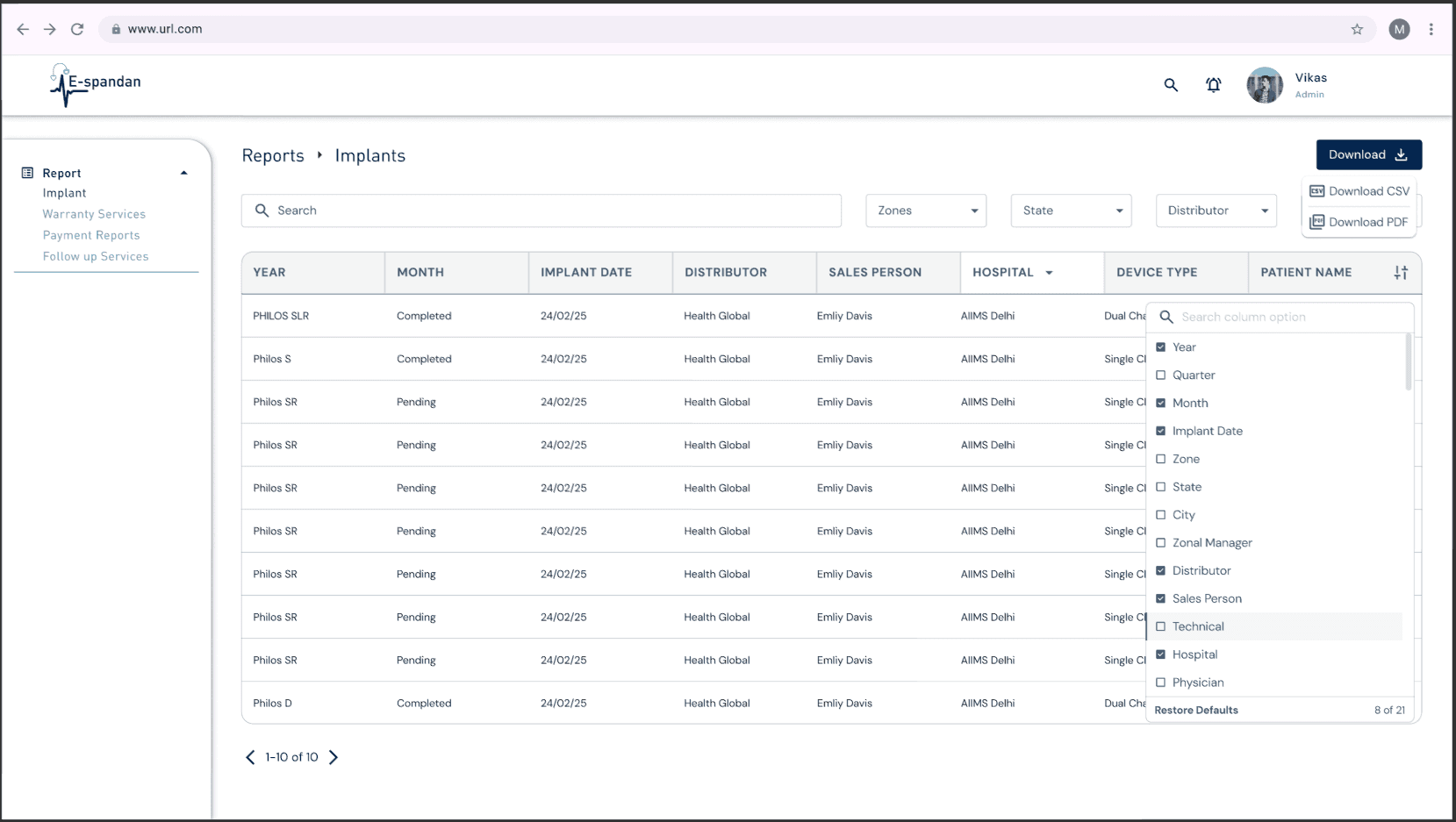
Too many number of columns with limited screen real-estate.
Most of the places where such situations come the design is simply a fixed width with horizontal scrolls to go to all other columns. A simple screen with horizontal scroll for me would have been a Lazy Design, and I was hopefully to find a better solution for the problem.
Solution
Step 1
Strategic Planning Based on Field Usage
The redesign process began by analyzing the existing reports and identifying fields that consistently appeared together. Recognizing these patterns helped form the foundation for a more intuitive grouping strategy and ensured that frequently-used data was prioritized in the final layout.
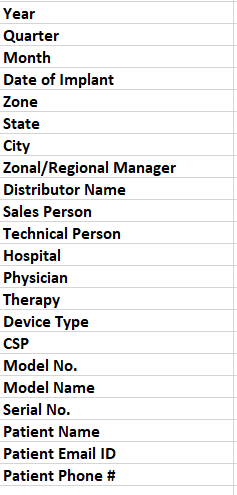
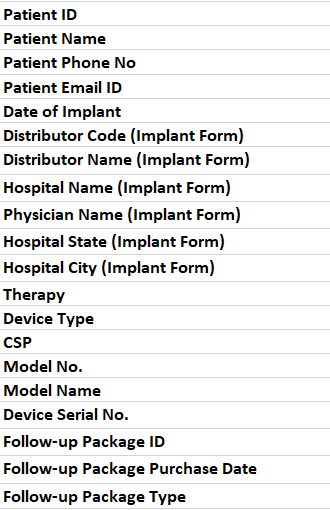
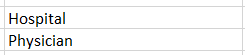
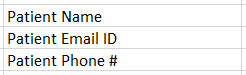
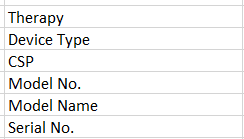
There were some variations in fields like Hospital and Physician in some reports also include Hospital, Hospital Address, Physician and Physician Names, which made it important to work on all the screens carefully.
Step 2
Grouping Related Fields Through Relationship Mapping
To streamline the report, repeated or unnecessary fields were removed. This helped reduce confusion and focus the user’s attention on meaningful data, resulting in a cleaner and more purposeful layout.
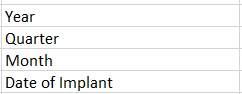
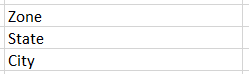
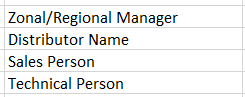
Date of Implant
Quarter
Month
Year
Zone
State
City
Zonal Manager
Distributor
Sales Person
Technical Person
Hospital
Physician
Therapy
Device Type
CSP
Model Number
Model Name
Serial Number
Patient Name
Patient Email ID
Patient Phone Number
Step 3
Eliminating Redundant Information
To streamline the report, repeated or unnecessary fields were removed. This helped reduce confusion and focus the user’s attention on meaningful data, resulting in a cleaner and more purposeful layout.
Date of Implant
Quarter
Month X
Year X
Zone
State
City
Zonal Manager
Distributor
Sales Person
Technical Person
Hospital
Physician
Therapy X
Device Type
CSP
Model Number
Model Name X
Serial Number
Patient Name
Patient Email ID
Patient Phone Number
Month and Year were already present in "Date", adding 2 additional column for the same would be unnecessary.
Therapy name was Included in "Device Type" (For "Brady Therapy", Device Types are "Single Chamber Brady", "Dual Chamber Brady" and "Triple Chamber Brady").
Although few fields are removed, but information of that field is not, it is rearranged somewhere in report.
Step 4
Unifying Fields Under Umbrella Terms
Related fields were grouped under broader umbrella terms to improve clarity. This categorization helped users scan the report faster and understand the context of grouped data without needing to decipher each field individually.
Date
Date of Implant
Quarter
Location
Zone
State
City
Service Personnel
Zonal Manager
Distributor
Sales Person
Technical Person
Medical
Hospital
Physician
Implant Device
Device Type
CSP
Model Number
Serial Number
Patient
Patient Name
Patient Email ID
Patient Phone Number
Step 5
Prioritizing Field Arrangement by Importance
Fields were then ordered based on their relevance and importance to the user. By putting the most critical data at the top or in focal areas, users could absorb key information more efficiently without having to scroll or search excessively.

Had to reintroduce "Therapy" based on client's feedback
Step 6
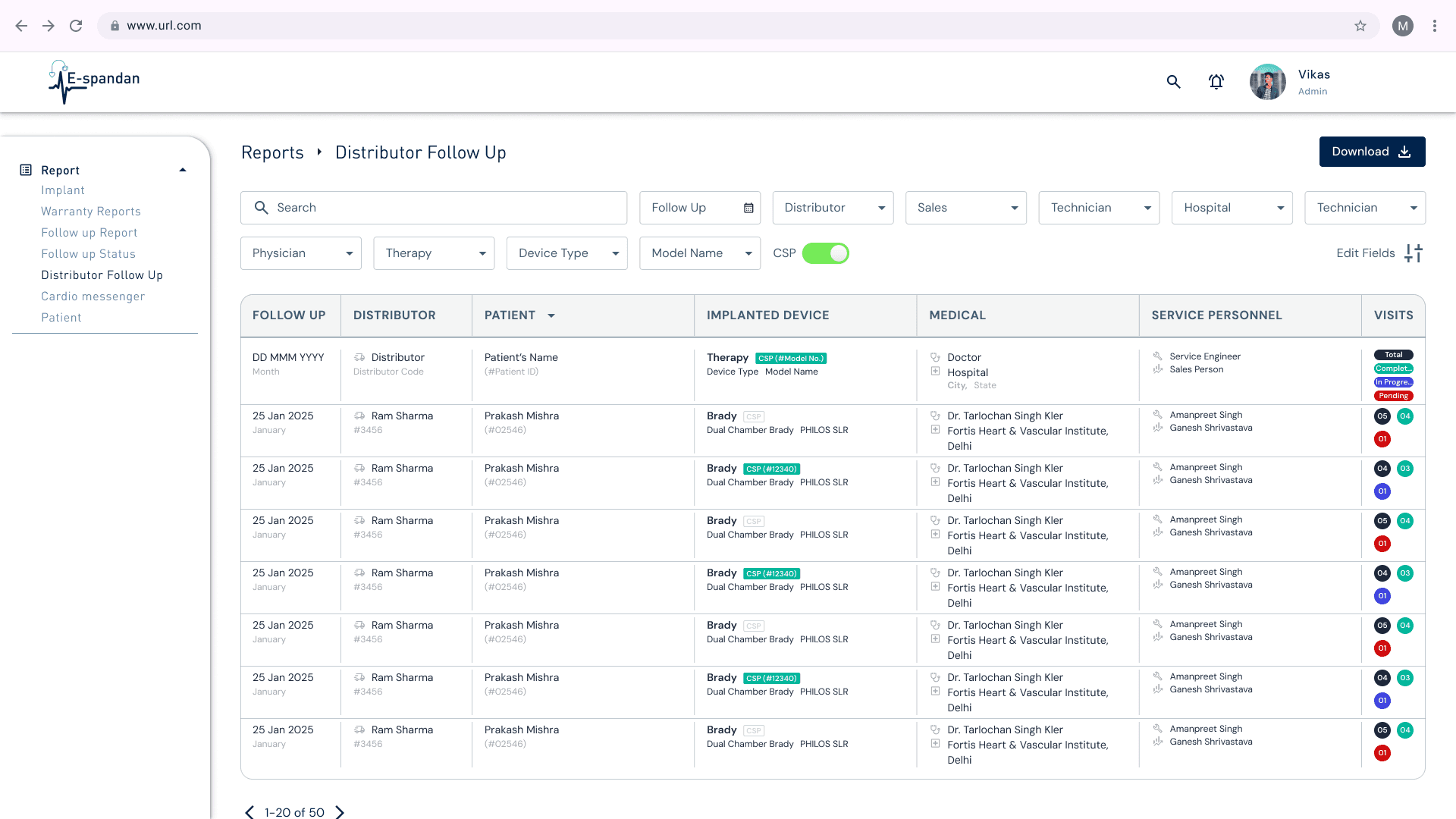
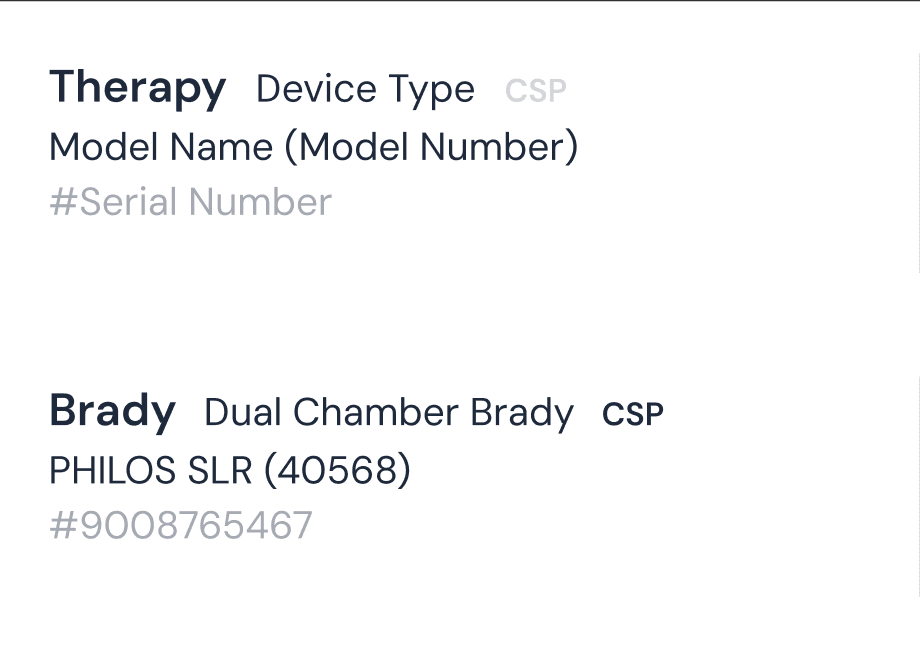
Introducing Hierarchy Within Columns
A visual and contextual hierarchy was applied within each column to enhance readability. This structured approach made it easier for users to follow the flow of information and distinguish between primary data points and supporting details.

Step 7
Using Icons to Represent Employee Roles
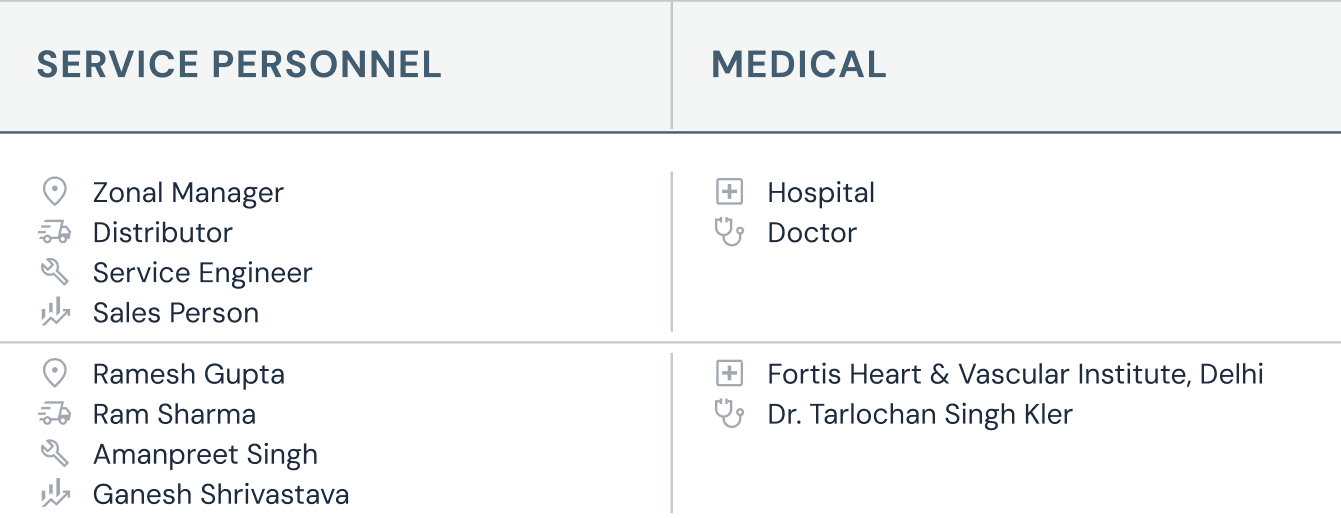
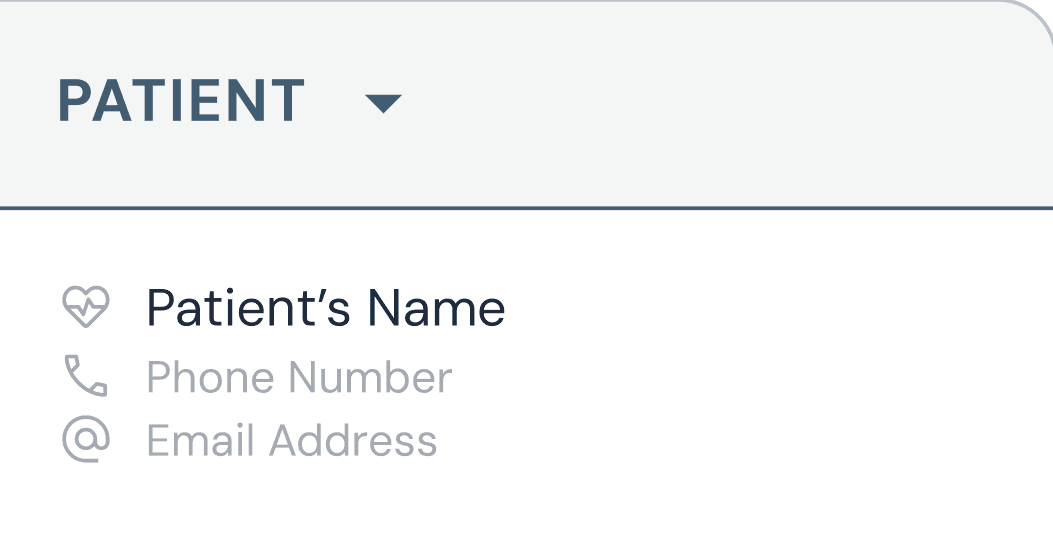
To add visual cues and improve user comprehension, icons were introduced to signify different user roles, Hospital and Doctor (Physician) and Patient Information within the "Service Personnel", "Medical" and "Patient" sections respectively. This made the report more intuitive and reduced the need for textual explanations.
Step 8
Applying Visual Enhancements for Specific Use Cases
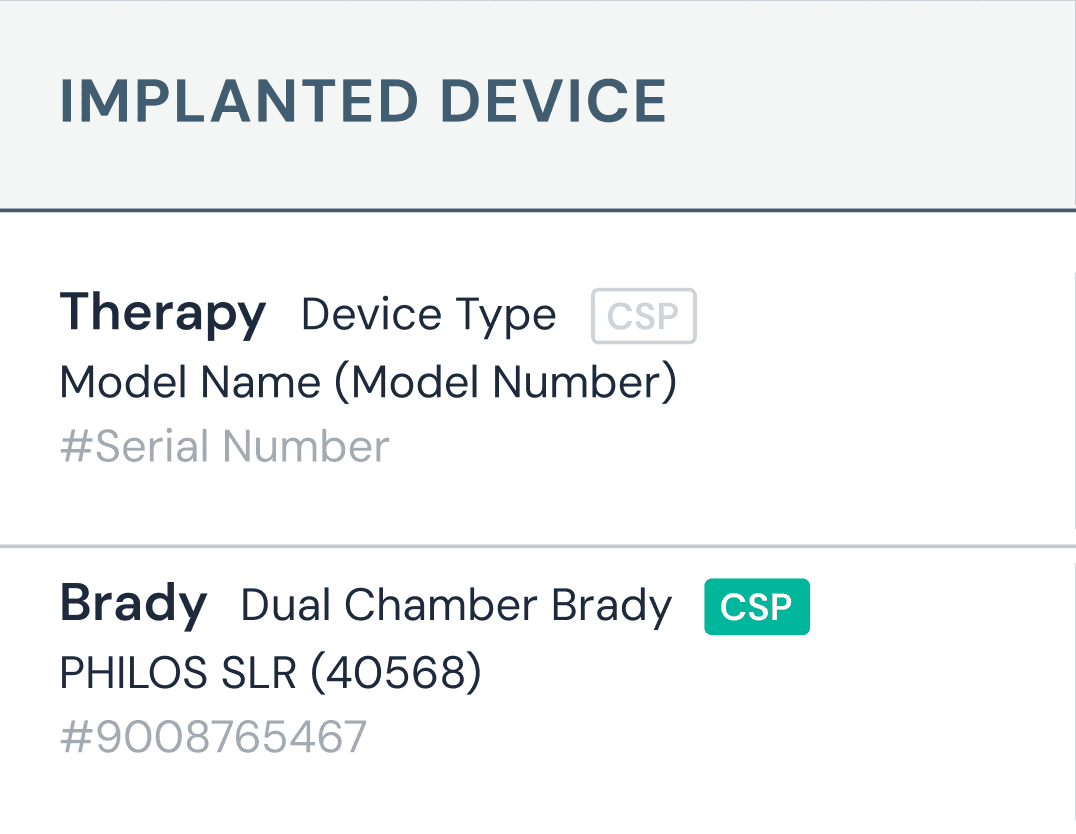
Additional UI touches were added to make the report more engaging and functional. For example, color coding was used for CSP implant devices, and implant numbers were marked with a chip icon—both of which made identification quicker and more user-friendly.
Step 9
Blending Familiar Interactions with New Functionality
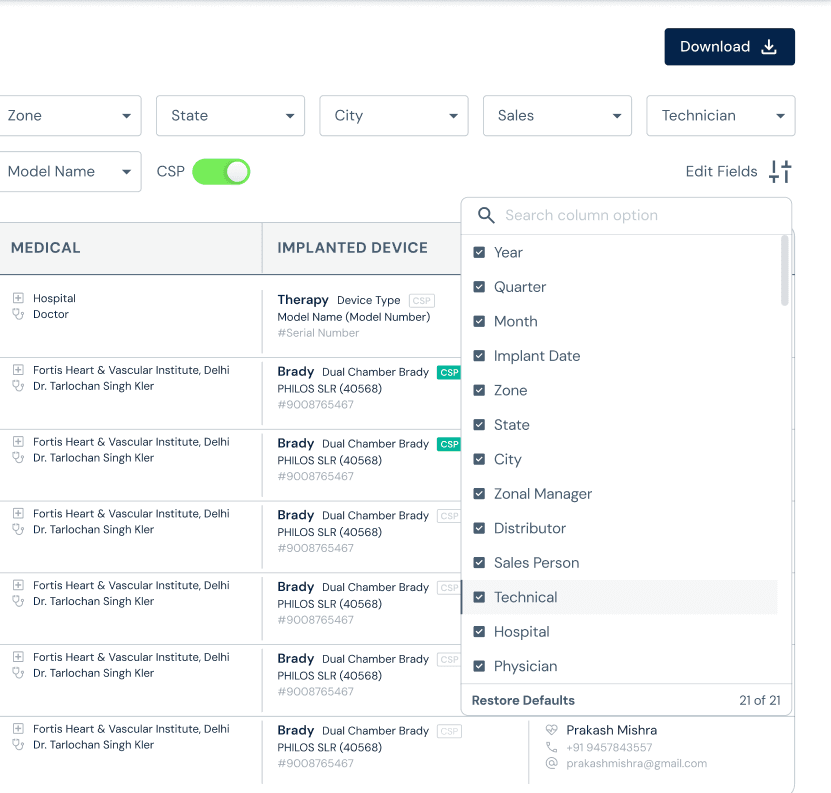
To ensure a smooth transition to the new interface, legacy user habits were considered. Functional elements like editable visible fields and exporting to CSV were retained but enhanced. The exported form mimicked the familiar structure, with all columns represented separately, bridging the gap between old and new workflows.
Developer Handoff Considerations
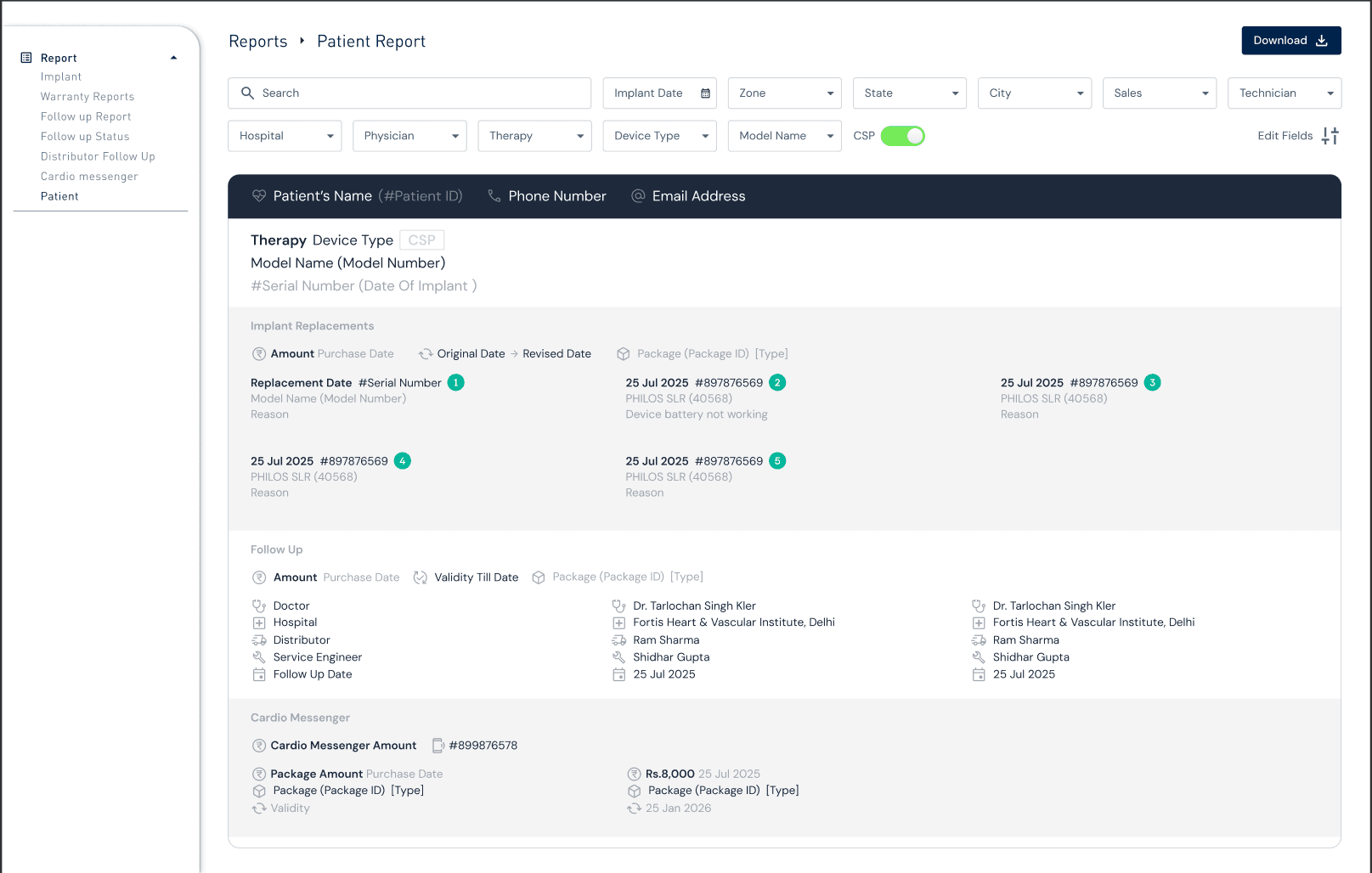
To make implementation easier for developers, a mapping of fields to database tables was provided, allowing quick API integration. A grid layout was used for displaying previous appointment details, maintaining a structure similar to traditional tables for better context and easier understanding.

Result
Created 6+1 reports
Reports based on clients requirement.
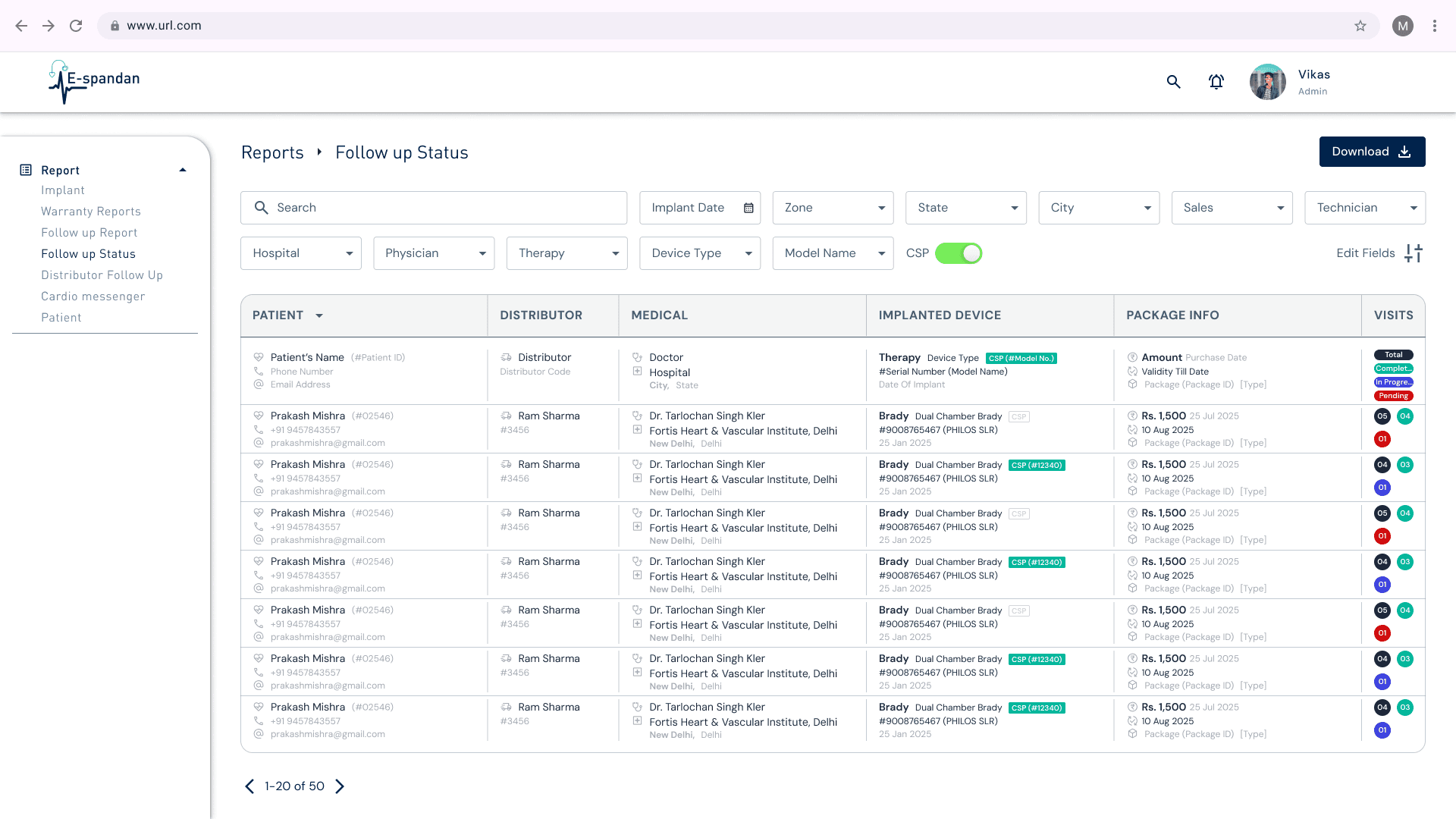
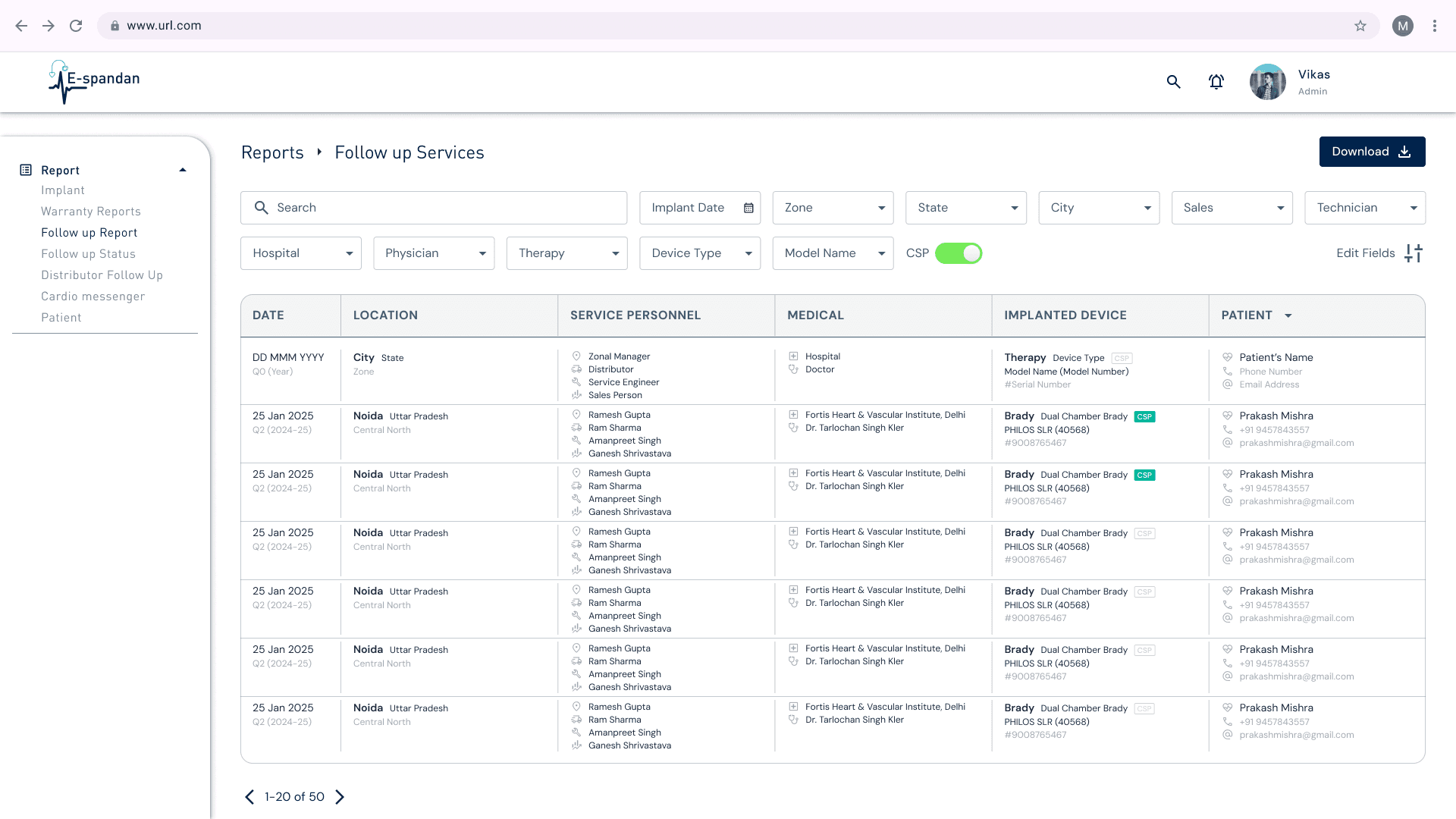
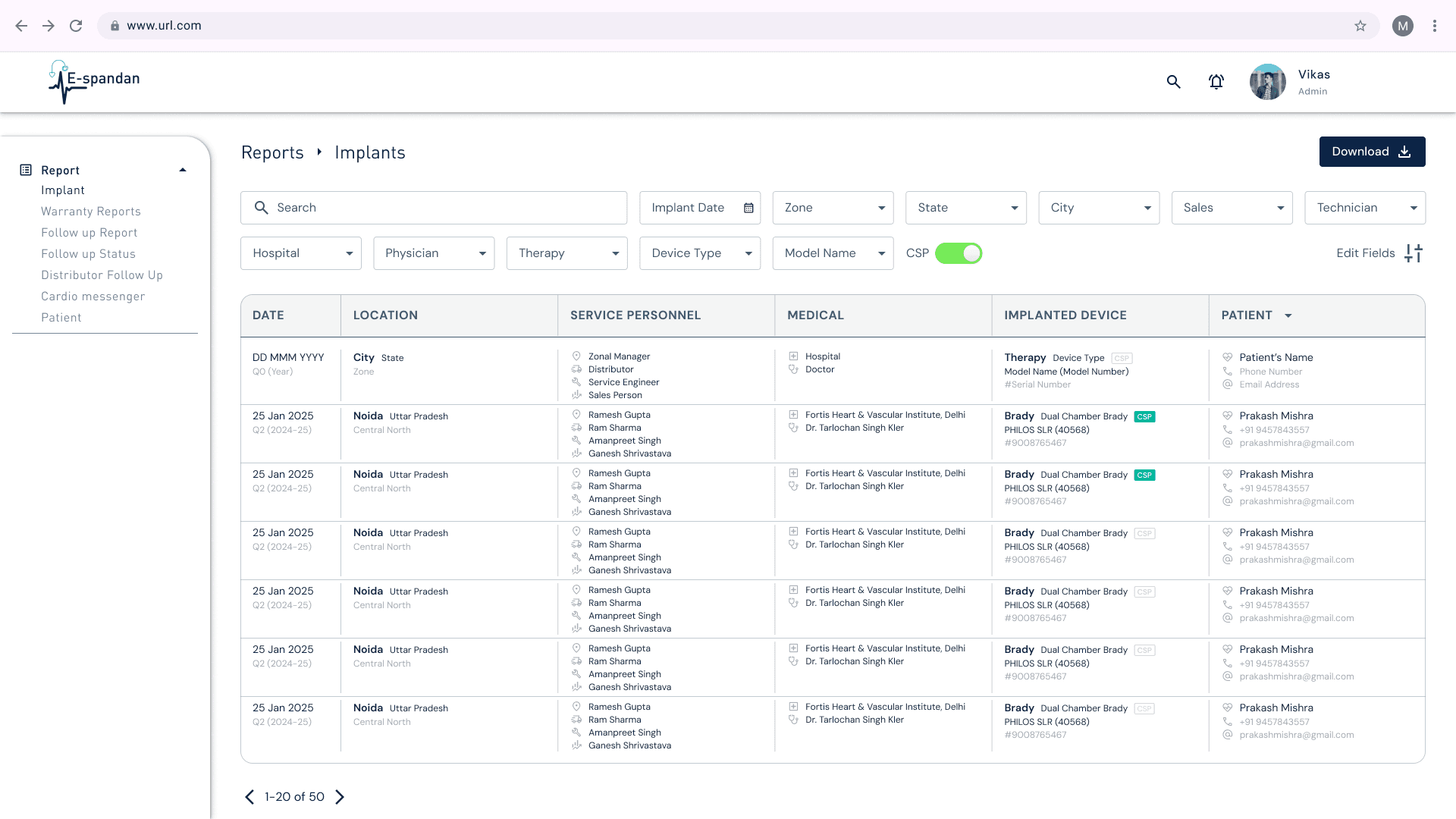
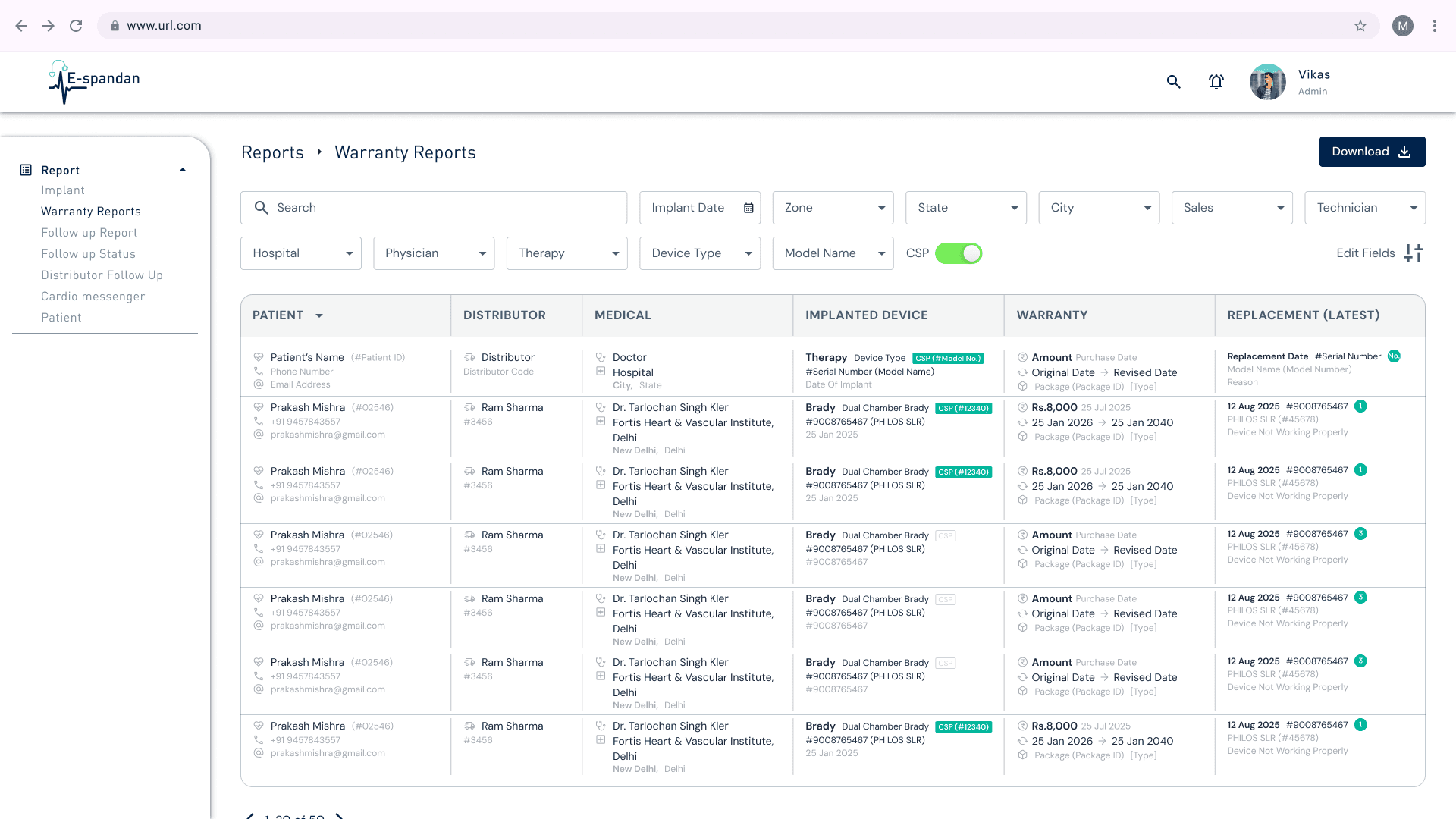
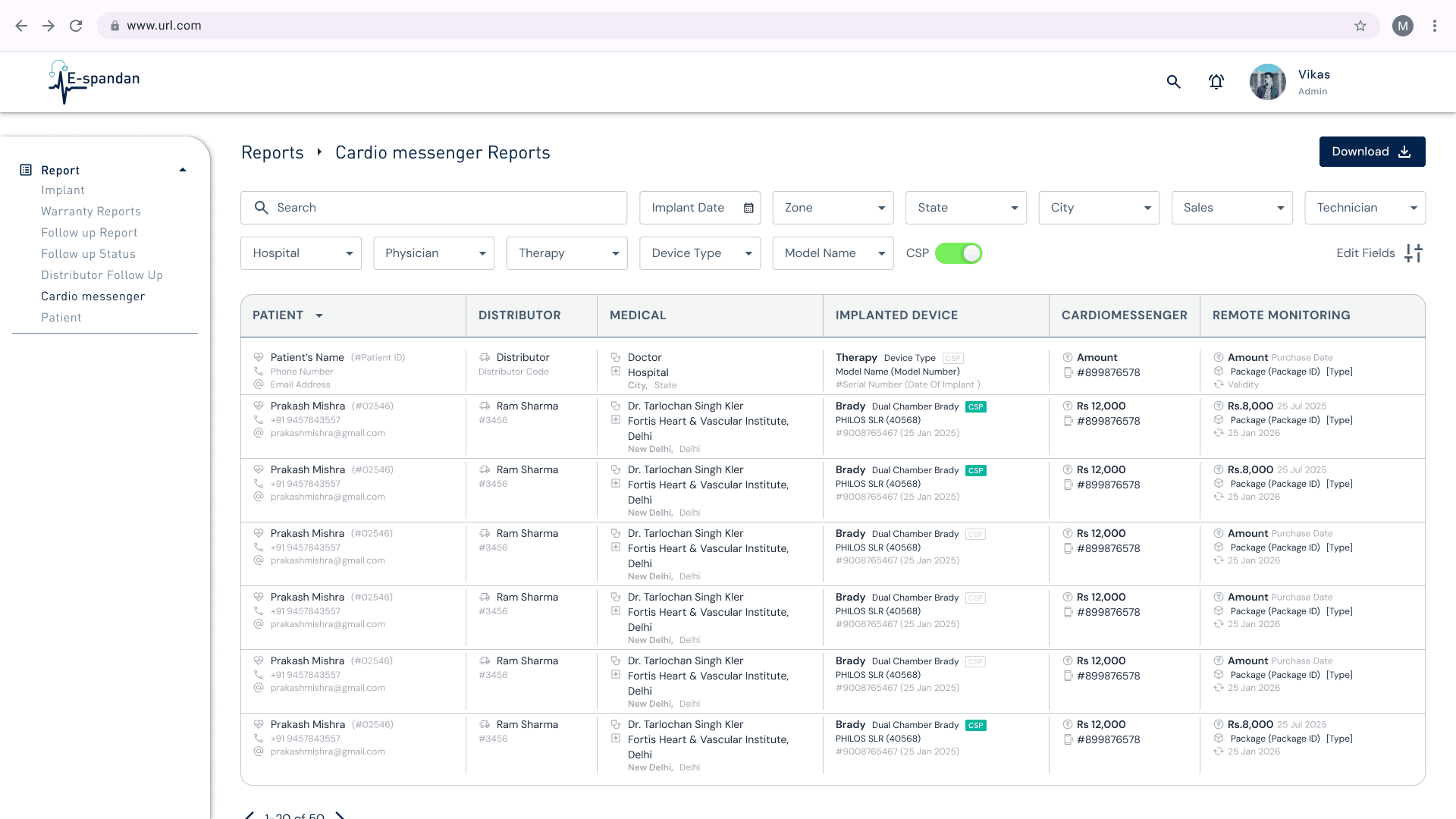
Report of each Individual Patient to extract their History.